Introduction to Amazon Simple Storage Service (S3)
SPL-TF-100-STESS3 – Version 2.4.18
© 2025 Amazon Web Services, Inc. or its affiliates. All rights reserved. This work may not be reproduced or redistributed, in whole or in part, without prior written permission from Amazon Web Services, Inc. Commercial copying, lending, or selling is prohibited. All trademarks are the property of their owners.
Note: Do not include any personal, identifying, or confidential information into the lab environment. Information entered may be visible to others.
Corrections, feedback, or other questions? Contact us at AWS Training and Certification.
Objectives
After completing this lab, you will know how to:
- Create a bucket in Amazon S3
- Manage access permissions on an object and a bucket
- Add an object to a bucket
- Create a bucket policy
- Use bucket versioning
Prerequisites
This lab follows the Getting Started with Amazon Simple Storage Service (S3) digital course.
Duration
This lab requires 60 minutes to complete.
Overview
This lab teaches you the basic feature functionality of Amazon S3 using the AWS Management Console.
Amazon Simple Storage Service (Amazon S3) is an object storage service that offers industry-leading scalability, data availability, security, and performance. This means customers of all sizes and industries can use it to store and protect any amount of data for a range of use cases, such as websites, mobile applications, backup and restore, archive, enterprise applications, Internet of Things (IoT) devices, and big data analytics. Amazon S3 provides easy-to-use management features so you can organize your data and configure finely-tuned access controls to meet your specific business, organizational, and compliance requirements. Amazon S3 is designed for 99.999999999% (11 9’s) of durability and stores data for millions of applications for companies all around the world.
Visit the Amazon S3 product information page for additional details, capabilities, and a short introduction video about the service.
Icon key
Various icons are used throughout this lab to call attention to certain aspects of the guide. The following list explains the purpose of each icon:
- Specifies the command you must run.
- Verifies the output of a command or edited file.
- Specifies important hints, tips, guidance, or advice.
- Specifies where to find more information.
- Calls attention to information of special interest or importance. Failure to read the note does not result in physical harm to the equipment or data, but could result in the need to repeat certain steps.
- Draws special attention to actions that are irreversible and could potentially impact the failure of a command or process. Includes warnings about configurations that cannot be changed after they are made.
- Suggests a moment to pause to consider how you might apply a concept in your own environment or to initiate a conversation about the topic at hand.
Start lab
- To launch the lab, at the top of the page, choose Start Lab. Caution: You must wait for the provisioned AWS services to be ready before you can continue.
- To open the lab, choose Open Console .You are automatically signed in to the AWS Management Console in a new web browser tab. Warning: Do not change the Region unless instructed.
Common sign-in errors
Error: Choosing Start Lab has no effect
In some cases, certain pop-up or script blocker web browser extensions might prevent the Start Lab button from working as intended. If you experience an issue starting the lab:
- Add the lab domain name to your pop-up or script blocker’s allow list or turn it off.
- Refresh the page and try again.
Lab Scenario
You work for a company using Amazon S3 for data storage. An application residing on an EC2 instance needs to push reporting data to an S3 bucket daily. You are tasked with creating an S3 bucket for your company to use for storing this report data. For a successful deployment, you need to ensure the EC2 instance has enough privileges to be able to upload and retrieve data from the S3 bucket. For security reasons, only the EC2 instance can write data to the S3 bucket. The files in the S3 bucket also require protection against accidental deletion. This lab follows the Getting Started with Amazon S3 digital course.
Task 1: Create a bucket
You are new to Amazon S3 and want to test the features and security of S3 as you configure the environment to hold the EC2 report data. You know that every object in Amazon S3 is stored in a bucket so creating a new bucket to hold the reports is the first thing on your task list.
In this task, you create a bucket to hold your EC2 report data and then examine the different bucket configuration options.
- At the top of the AWS Management Console, search for and choose S3.
You can also search for S3 at the top of the services menu.
- Choose Create bucket
Caution: Bucket names must be between 3 and 63 characters long and consist of only lowercase letters, numbers, or hyphens. The bucket name must be globally unique across all of Amazon S3, regardless of account or region, and cannot be changed after the bucket is created. As you enter a bucket name, a help box displays showing any violations of the naming rules. Refer to the Amazon S3 bucket naming rules in the Additional resources section for more information.
In this lab, you will use your AWSLabUser account number in the bucket name to ensure that it is unique.
- At the top right of the Management Console, choose the AWSLabsUser dropdown menu.
- Under Account ID, select to copy the AWSLabsUser account ID to your clipboard.
- Under the General configuration section, name your bucket: reportbucket-<Account ID>
- Example bucket name: reportbucket-12345678901 Replace NUMBER in the bucket name with a random number. This ensures that you have a unique name.
- Example Bucket Name – reportbucket-987987987987
- In the Object Ownership section, configure:
- ACLs enabled
- Object writer
- Leave Region at its default value.
Selecting a particular region allows you to optimize latency, minimize costs, or address regulatory requirements. Objects stored in a region never leave that region unless you explicitly transfer them to another region.
- Scroll to the bottom and choose Create bucket
Task 2: Upload an object to the bucket
Now that you have a bucket created for your report data, you are ready to work with objects. An object can be any kind of file: a text file, a photo, a video, a zip file, and so on. When you add an object to Amazon S3, you have the option of including metadata with the object and setting permissions to control access to the object.
In this task you test uploading objects to your reportbucket. You have a screencapture of a daily report and want to upload this image to your S3 bucket.
- Right-click this link new-report.png, choose Save link as, and save the file locally.
- In the S3 Management Console, find and select the bucket that starts with the name reportbucket.
- Choose Upload
This launches an upload wizard. Use this wizard to upload files either by selecting them from a file chooser or by dragging them to the S3 window.
- Choose Add files
- Browse to and select the new-report.png file that you downloaded previously.
- Scroll down and choose Upload
Your file is successfully uploaded when the green bar indicating Upload succeeded appears.
If the file does not display in the bucket within a few seconds of uploading it, you may need to choose the refresh button at the top-right.
- In the Upload: status section, choose Close.
Task 3: Make an object public
Security is a priority in Amazon S3. Before you configure your EC2 instance to connect to the reportbucket, you want to test the bucket and object settings for security.
In this task, you configure permissions on your bucket and your object to test accessibility.
First, you attempt to access the object to confirm that it is private by default.
- In the reportbucket overview page, on the objects tab, locate the new-report.png object, and choose the new-report.png file name.
The new-report.png overview page opens. Notice that the navigation in the top-left updates with a link to return to the bucket overview page.
- In the Object overview section, locate and copy the Object URL link.
The link should look similar to: https://reportbucket987987.s3-us-west-2.amazonaws.com/new-report.png
- Open a new browser tab and paste the Object URL link into the address field, and then press Enter.
You receive an Access Denied error. This is because objects in Amazon S3 are private by default.
Now that you’ve confirmed the default security of S3 is private, you want to test how to make the object publicly accessible.
- Keep the browser with the Access Denied error open and return to the web browser tab with the S3 Management Console.
- You should still be on the new-report.png Object overview tab.
- Choose the Object actions button and Make public using ACL, which will be the last item in the list.
Notice the warning Public access is blocked because Block Public Access settings are turned on for this bucket. This error displays because this bucket is configured not to allow public access. The bucket settings override any permissions applied to individual objects. If you want the object to viewable by the general public, you need to turn off Block Public Access (BPA).
- Choose Make public and read the warning at the top of the window indicating that it “Failed to edit public access” again this is due to BPA being enabled.
- Choose Close to return to the object overview.
- Use the navigation at the top to go back to the main reportbucket overview page.
- Choose the Permissions tab.
- Under Block public access (bucket settings), choose Edit to change the settings.
- Deselect the Block all public access option, and then leave all other options deselected.
Notice that all of the individual options remain deselected. When deselecting all public access, you must then select the individual options that apply to your situation and security objectives. Both ACLs and bucket policies are used later in the lab, so they all remain deselected in this task. In a production environment, it is recommended to use the least permissive settings possible. Refer to the Amazon S3 block public access link in the Additional Resources section at the end of the lab for more information.
- Choose Save changes
- A dialogue box opens asking you to confirm your changes. Type confirm in the field, and then choose Confirm
A Successfully edited bucket settings for Block Public Access message displays at the top of the window.
- Choose the Objects tab.
- Choose the new-report.png file name.
- On the new-report.png overview page, choose the Object actions button and select Make public using ACL.
Notice the warning: When public read access is enabled and not blocked by Block Public Access settings, anyone in the world can access the specified objects. This is designed to remind you that if you make the object public then everyone in the world will be able to read the object.
- Choose Make public and you should see the green banner Successfully edited public access at the top of the window.
- Choose Close to return to the object overview.
- Return to the other browser tab that displayed Access Denied for the new-report.png and refresh the page.
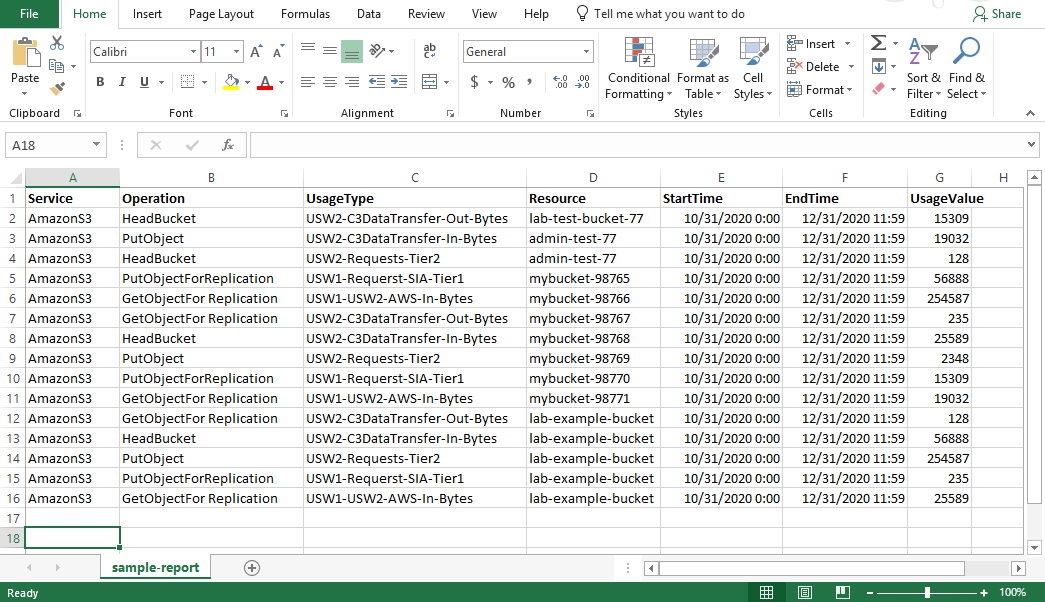
The new-report.png now displays properly because it is publicly accessible.
- Close the web browser tab that displays your new-report.png image and return to the tab with the Amazon S3 Management Console.
In this example, you granted read access to just one specific object. If you wish to grant access to the entire bucket, you need to use a bucket policy, which is covered later in this lab.
In the next task, you work with your EC2 instance to confirm connectivity to the S3 bucket.
Task 4: Test connectivity from the EC2 instance
In this task, you connect to your Amazon Elastic Compute Cloud (Amazon EC2) instance to test connectivity and security to the S3 reportbucket.
You should already be logged into the AWS Managment Console. If not, follow the steps in the Start Lab section to log in to the AWS Management Console.
- At the top of the AWS Management Console, search for and choose EC2.
- On the EC2 Dashboard, under the Resources section, choose Instances (running).
- Select Bastion Host and choose Connect
- In the Connect to instance window:
- For Connection method, select Session Manager.
Session Manager enables you to connect to the bastion host instance without the need for specific ports to be open on your firewall or Amazon Virtual Private Cloud (Amazon VPC) security group. Refer to AWS Systems Manager Session Manager in the Additional resources section at the end of this lab for more information.
- Choose Connect
A new browser tab or window opens with a connection to the bastion host instance.
You are now connected to the EC2 instance that holds the reporting application. Because Session Manager uses https port 443, it does not require you to open SSH port 22 to the outside world, you are satisfied with this security feature. Now you want to see how EC2 interacts with your S3 bucket.
- In the bastion host session, enter the following command to change to home directory (/home/ssm-user/):
cd ~The output returns you to the command prompt.
- Enter the following command to verify you are in the home directory:
pwdThe output should be:
/home/ssm-userYou are now in the ssm-user’s home directory where you will run all of the commands in this lab.
- Enter the following command to list all of your S3 buckets.
aws s3 lsThe output should look similar to this:
2020-11-11 22:27:28 ql-cf-templates-1603924046-5d95cf473a39fe4e-us-west-2
2020-11-11 22:27:49 qltrail-lab-59350-1603924067
2020-11-11 22:34:46 reportbucket987987
You see the reportbucket you created as well as lab auto-generated buckets.
Note: During the creating of the lab enviornment, both an Instance Profile (which defines who you are for authentication) and a Role (which defines what you can do after you authenticate), have been automatically added for the EC2 instance to allow the EC2 instance to list the S3 buckets and objects.
- Enter the following command to list all objects in your reportbucket. Remember to change the number at the end of the reportbucket name, to match the name of the bucket you created.
aws s3 ls s3://reportbucket(NUMBER)The command looks similar to this: aws s3 ls s3://reportbucket-987987
The output should look like this:
2020-11-11 15:46:34 86065 new-report.pngThere is currently just one object in your bucket called new-report.png.
- Type the following to change directories into the reports directory.
cd reportsThe output returns you to the command prompt.
- Type the following to list the contents of the directory.
lsThe output shows some files created in your reports directory to test the application.
dolphins.jpg files.zip report-test.txt report-test1.txt report-test2.txt report-test3.txt whale.jpg- Type the following to see if you can copy a file to the S3 bucket.
aws s3 cp report-test1.txt s3://reportbucket(NUMBER)The command looks similar to this: aws s3 cp report-test1.txt s3://reportbucket-987987
The output indicates an error upload failed. This is because we have read-only rights to the bucket and do not have the permissions to perform the PutObject operation.
- Leave this window open and go back to the AWS Console tab.
In the next task you create a bucket policy to add the PutOperation.
Task 5: Create a bucket policy
A bucket policy is a set of permissions associated with an S3 bucket. It is used to control access to an entire bucket or to specific directories within a bucket.
In this task, you use the AWS Policy Generator to create a bucket policy to enable read and write access from the EC2 instance to the bucket to ensure your reporting application can successfully write to S3.
- Right-click this link sample-file.txt, choose Save link as, and save the file locally.
- Return to the AWS Management Console, search for and select S3.
- In the S3 Management Console tab, select the name of your bucket.
- Choose Upload and use the same upload process as in the previous task to upload the sample-file.txt.
- Choose the sample-file.txt file name. The sample-file.txt overview page opens.
- Under the Object overview section, locate and copy the Object URL link.
- In a new browser tab, paste the link into the address field, and then press Enter.
Once again, Access Denied will be displayed. You need to configure a bucket policy to grant access to all objects in the bucket without having to specify permissions on each object individually.
- Keep this browser tab open, but return to the tab with the S3 Management Console.
- Search for and go to IAM > Roles.
- In the Search field type EC2InstanceProfileRole. This is the Role that the EC2 instance uses to connect to S3.
- Select EC2InstanceProfileRole. On the Summary page, copy the Role ARN to a text file to be used in a later step.
It should look similar to this: arn:aws:iam::596123517671:role/EC2InstanceProfileRole
- Search for S3 and return to the S3 Management Console.
- Choose the reportbucket.
You should see the two objects you uploaded. If not, navigate back to your bucket so that you see the list of objects you have uploaded.
- Choose the Permissions tab.
- In the Permissions tab, scroll to the Bucket Policy section, choose Edit
A blank Bucket policy editor is displayed. Bucket policies can be created manually, or they can be created with the assistance of the AWS Policy generator.
Amazon Resource Names (ARN)s uniquely identify AWS resources across all of AWS. Each section of the ARN is separated by a “:” and represents a specific piece of the path to the specified resource. The sections can vary slightly depending on the service being referenced, but generally follows this format:
arn:partition:service:region:account-id:resource
Amazon S3 does not require region or account-id parameters in ARNs, so those sections are left blank. However, the “:” to separate the sections is still used, so it looks similar to arn:aws:s3:::reportbucket987987
Refer to the Amazon Resource Names (ARNs) and AWS Service Namespaces documentation link in the Additional Resources section at the end of the lab for more information.
- Copy the Bucket ARN to a text file to be used in a later step.
It is displayed below the Policy examples button
It looks like this:
Bucket ARN
arn:aws:s3:::reportbucket987987- Open a new browser tab and go to the AWS Policy Generator at: https://awspolicygen.s3.amazonaws.com/policygen.html
AWS policies use the JSON format, and are used to configure granular permissions for AWS services. While you can write the policy in JSON manually, the AWS Policy Generator allows you to create it using a friendly web interface.
In the AWS Policy Generator window:
- For Select Type of Policy, select S3 Bucket Policy.
- For Effect, select Allow.
- For Principal, paste the EC2InstanceProfileRole ARN that you copied to a text file in a previous step.
- For Actions, select PutObject and GetObject
The get GetObject action grants permission for objects to be retrieved from Amazon S3. Refer to the Additional Resources section at the end of the lab for links to more information about the actions available for use in Amazon S3 policies.
- Amazon Resource Name (ARN): Paste the Bucket ARN that you previously copied.
- At the end of the ARN, append /*
The ARN should look similar to: arn:aws:s3:::reportbucket987987/*
An Amazon Resource Name (ARN) is a standard way to refer to resources within AWS. In this case, the ARN is referring to your S3 bucket. Adding /* to the end of the bucket name allows the policy to apply to all objects within the bucket.
- Choose Add Statement. The details of the statement you configured are added to a table below the button. You can add multiple statements to a policy.
- Choose Generate Policy.
A new window is displayed showing the generated policy in JSON format. It should look similar to:
{
    "Version": "2012-10-17",
    "Id": "Policy1604361694227",
    "Statement": [
        {
            "Sid": "Stmt1604361692117",
            "Effect": "Allow",
            "Principal": {
                "AWS": "arn:aws:iam::416159072693:role/EC2InstanceProfileRole"
            },
            "Action": [
                "s3:GetObject",
                "s3:PutObject"
            ],
            "Resource": "arn:aws:s3:::reportbucket987987/*"
        }
    ]
}
Confirm that
/* appears after your bucket name as shown in the Resource line in the sample above.
- Copy the policy you created to your clipboard.
- Close the web browser tab and return to the tab with the Bucket policy editor.
- Paste the bucket policy you created into the Bucket policy editor.
- Choose Save changes
- Return to the AWS Systems Manager (SSM) window. If your session has timed out, reconnect to the SSM using the steps from earlier in the lab.
- Type the following to verify you are in the /home/ssm-user/reports directory.
pwdThe output should be:
/home/ssm-user/reports- Enter the following command to list all objects in your reportbucket. Replace NUMBER with the number you used to create your bucket.
aws s3 ls s3://reportbucket(NUMBER)The command should look similar to this: aws s3 ls s3://reportbucket-987987
The output should look similar to this:
sh-4.2$ aws s3 ls s3://reportbucket987987
2020-11-02 23:20:27      86065 new-report.png
2020-11-02 23:57:03 90 sample-file.txt- Type the following to list the contents of the reports directory.
lsThe output returns a list of files.
- Type the following to try coping the report-test1.txt file to the s3 bucket.
aws s3 cp report-test1.txt s3://reportbucket(NUMBER)The command should look like this: aws s3 cp report-test1.txt s3://reportbucket-987987
The output returns the following:
upload: ./report-test1.txt to s3://reportbucket987987/report-test1.txt- Type the following to see if the file successfully uploaded to S3.
aws s3 ls s3://reportbucket(NUMBER)The output should look similar to this:
2020-11-11 18:20:23      86065 new-report.png
2020-11-11 18:32:18         31 report-test1.txt
2020-11-11 18:20:22         90 sample-file.txt
You have successfully uploaded (PutObject) a file from the EC2 instance to your S3 bucket.
- Now type the following command to retrieve (GetObject) a file from S3 to the EC2 Instance.
aws s3 cp s3://reportbucket(NUMBER)/sample-file.txt sample-file.txtThe output should look similar to this:
download: s3://reportbucket987987/sample-file.txt to ./sample-file.txt- Type the following to see if the file is now in the /reports directory.
lsThe output should look similar to this:
dolphins.jpg files.zip report-test1.txt report-test2.txt report-test3.txt sample-file.txtYou now see the sample-file.txt in your file list. Congratulations! You have succesfully uploaded and retrieved a file from EC2 to the S3 bucket.
- Return to the browser tab that displayed the Access Denied for the sample-file.txt and refresh the page.
The page still displays an error message because the Bucket Policy only gave rights to the principal called EC2InstanceProfileRole.
- Next, on your own, go back to the policy generator and add another statement to the bucket policy allowing EVERYONE (*), Read access (GetObject). Take a moment to generate this policy which allows both the EC2InstanceProfileRole to have access to the bucket while giving EVERYONE access to read the objects via the browser.
- To test if your policy works, go to your browser with the Access Denied error and refresh it. If you can read the text, then congratulations! Your policy was successful.
If not, look at the policy below for help. The modified policy should look like the policy listed below. Notice that there are TWO statements, one with the EC2InstanceProfileRole and one where the Principal is “*” for everyone.
If you had trouble generating the policy on your own, you can copy the policy below and paste it into the BucketPolicy Editor. Remember to replace the existing EC2InstanceProfileRole ARN in the policy below with the EC2InstanceProfileRole ARN you copied in an earlier step. Ensure that the /* appears at the end of the Bucket ARN. See the last line of the file as an example.
{
    "Version": "2012-10-17",
    "Id": "Policy1604428844058",
    "Statement": [
        {
            "Sid": "Stmt1604428821481",
            "Effect": "Allow",
            "Principal": {
                "AWS": "arn:aws:iam::285058481724:role/EC2InstanceProfileRole"
            },
            "Action": [
                "s3:GetObject",
                "s3:PutObject"
            ],
            "Resource": "arn:aws:s3:::reportbucket987987/*"
        },
        {
            "Sid": "Stmt1604428842806",
            "Effect": "Allow",
            "Principal": "*",
            "Action": "s3:GetObject",
            "Resource": "arn:aws:s3:::reportbucket987987/*"
        }
    ]
}- Leave the tab open with the sample-file.txt displayed. You will return to this tab in the next task.
In this task you created a bucket policy to allow specific access rights to your bucket. In the next section you explore how to keep copies of files to prevent against accidental deletion.
Task 6: Explore versioning
Versioning is a means of keeping multiple variants of an object in the same bucket. You can use versioning to preserve, retrieve, and restore every version of every object stored in your Amazon S3 bucket. With versioning, you can easily recover from both unintended user actions and application failures.
For auditing and compliance reasons you need to enable versionsing on your reportbucket. Versioning should protect the reports in the reportbucket against accidental deletion. You are curious to see if this works as advertised. In this task, you enable versioning and test the feature by uploading a modified version of the sample-file.txt file from the previous task.
- You should be on the S3 bucket Permissions tab from the previous task. If you are not, choose the link to the bucket at the top-left of the screen to return to the bucket Overview page.
- On the reportbucket overview page, choose the Properties tab.
- Under the Bucket Versioning section, choose Edit
- Select Enable and then choose Save changes
Versioning is enabled for an entire bucket and all objects within the bucket. It cannot be enabled for individual objects.
There are also cost considerations when enabling versioning. Refer to the Additional Resources section at the end of the lab for links to more information.
- Right-click this link and save the text file to your computer using the same name as the text file in the previous task: sample-file.txt.
While this file has the same name as the previous file, it contains new text.
- In the S3 Management Console, on the reportbucket, choose the Objects tab.
Under the Objects section look for Show versions.
- Choose Upload and use the same upload process in the previous task to upload the new sample-file.txt file.
- Go to the browser tab that has the contents of the sample-file.txt file.
- Make a note of the contents on the page, then refresh the page.
Notice new lines of text appear.
Amazon S3 always returns the latest version of an object if a version is not otherwise specified.
You can also obtain a list of available versions in the S3 Management Console.
- Close the web browser tab with the contents of the text file.
- In the S3 Management Console, choose the sample-file.txt file name. The sample-file.txt overview page opens.
- Choose the Versions tab and then select the bottom version which reads null (Note: This is not the latest version).
- Select Open.
You should now see the original version of the file using the S3 Management Console.
However, if you try to access the older version of the sample-file.txt file using the object URL link, you will receive an access denied message. This is expected because the bucket policy you created in the previous task only allows permission to access the latest version of the object. In order to access a previous version of the object, you need to update your bucket policy to include the “s3:GetObjectVersion” permission. Below is an example bucket policy with the additional “s3:GetObjectVersion” action added that allows you to access the older version using the link. You do not need to update your bucket policy with this example to complete this lab. You can try to do this on your own after you complete the task.
{
  "Id": "Policy1557511288767",
  "Version": "2012-10-17",
  "Statement": [
    {
      "Sid": "Stmt1557511286634",
      "Action": [
        "s3:GetObject",
        "s3:GetObjectVersion"
      ],
      "Effect": "Allow",
      "Resource": "arn:aws:s3:::mybucket45647467/*",
      "Principal": "*"
    }
  ]
}- Return to the AWS Management Console tab and choose the link for the bucket name at the top-left to return to the bucket Objects tab.
- Locate the Show versions option and toggle the button to on to show the versions.
Now you can view the available versions of each object and identify which version is the latest. Notice the new-report.png object only has one version and the version ID is null. This is because the object was uploaded before versioning was enabled on this bucket.
Also notice that you can now choose the version name link to navigate directly to that version of the object in the console.
- Next to Show versions toggle the button to off to return to the default object view.
- Select the checkbox to the left of the sample-file.txt.
- With the object selected, choose Delete
- The Delete objects window appears.
- At the bottom, in the Delete objects? section you must type the word delete to confirm deletion of the object. Type delete and choose the Delete objects button.
- Choose Close to return to the bucket overview.
The sample-file.txt object is no longer displayed in the bucket. However, if the object is deleted by mistake, versioning can be used to recover it.
- Locate the Show versions option and toggle the button to on to show the versions.
Notice that the sample-file.txt object is displayed again, but the most recent version is a Delete marker. The two previous versions are listed as well. If versioning has been enabled on the bucket, objects are not immediately deleted. Instead, Amazon S3 inserts a delete marker, which becomes the current object version. The previous versions of the object are not removed. Refer to the Additional Resources section at the end of the lab for links to more information about versioning.
- Select the checkbox to the left of the version of the sample-file.txt object with the Delete marker.
- With the object selected, choose Delete
- The Delete objects window appears.
- At the bottom in the Permanently delete objects? section you must type the word permanently delete to confirm deletion of the object. Type permanently delete and choose the Delete objects button.
- Choose Close to return to the bucket overview.
- Next to Show versions toggle the button to off to return to the default object view.
Notice that the sample-file.txt object has been restored to the bucket. Removing the delete marker has effectively restored the object to its previous state. Refer to the Additional Resources section at the end of the lab for links to more information about undeleting S3 objects.
Next, you delete a specific version of the object.
- To delete a specific version of the object, locate the Show versions option and toggle the button to on to show the versions.
You should see two versions of the sample-file.txt object.
- Select the checkbox to the left of the latest version of the sample-file.txt object.
- With the object selected, choose Delete.
- The Delete objects window appears.
- At the bottom in the Permanently delete objects? section type permanently delete and choose the Delete objects button.
- Choose Close to return to the bucket overview.
Notice that there is now only one version of the sample-file.txt file. When deleting a specific version of an object no delete marker is created. The object is permanently deleted. Refer to the Additional Resources section at the end of the lab for links to more information about deleting object versions in Amazon S3.
- Next to Show versions toggle the button to off to return to the default object view.
- Choose the sample-file.txt file name. The sample-file.txt overview page opens.
- Copy the Object URL link displayed at the bottom of the window.
- In a new browser tab, paste the link into the address field, and then press Enter.
The text of the original version of the sample-file.txt object is displayed.
Summary:
You have successfully created an S3 bucket for your company to use to store report data from your EC2 Instance. You created a bucket policy to allow for the EC2 Instance to PutObjects and GetObject from the reportbuckt and you successfully tested uploading and downloading files from the EC2 instance to test the bucket policy. You have enabled versioning on the S3 bucket to protect against accidental object deletion. You have successfully completed the configuration for your EC2 reportbucket. Congratulations!
Knowledge check
This knowledge check is designed to gauge your understanding of the material covered.
Why this matters: Completing this knowledge check will help reinforce your grasp of the content and highlight any areas that may need further review.Launch knowledge check
Conclusion
You have successfully learned how to:
- Create a bucket in Amazon S3
- Add an object to your bucket
- Manage access permissions on an object
- Create a bucket policy
- Use bucket versioning
End lab
Follow these steps to close the console and end your lab.
- Return to the AWS Management Console.
- At the upper-right corner of the page, choose AWSLabsUser, and then choose Sign out.
- Choose End Lab and then confirm that you want to end your lab.
Additional resources
- Amazon S3
- Amazon S3 training
- Editing Object Permissions
- Amazon S3 bucket naming rules
- Amazon S3 block public access
- Amazon Resource Names (ARNs) and AWS Service Namespaces documentation
- AWS JSON Policy Elements documentation
- Actions, Resources, and Condition Keys for Amazon S3
- Amazon S3 Versioning
- Undelete objects in Amazon S3
- Deleting object versions in Amazon S3
- Amazon S3 Versioning cost considerations
- AWS Systems Manager Session Manager For more information about AWS Training and Certification, see https://aws.amazon.com/training/.
Your feedback is welcome and appreciated.
If you would like to share any feedback, suggestions, or corrections, please provide the details in our AWS Training and Certification Contact Form.